

This section explains how to operate the 3D viewer (3D Viewer), which is installed from the beginning on a Windows PC.
What is a 3D viewer?
A 3D viewer is an application that allows you to view 3D files, add simple animations, and take pictures of 3D models at any angle you want.
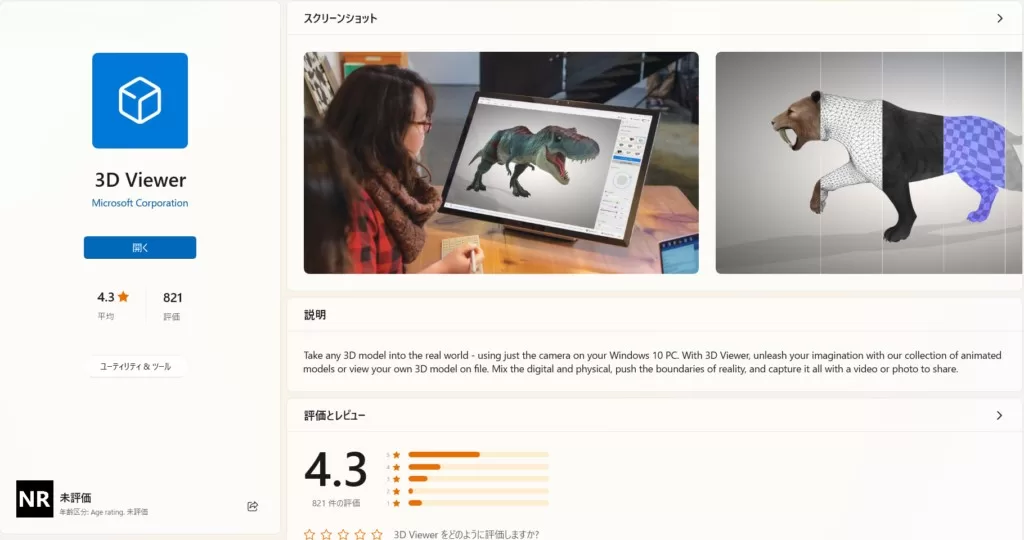
Operation method 1: Launching the application
Click on the Start button (  ) and click on “3D Viewer” or look for it in the search bar. You will immediately see a window like the one in the image below, click “OK”.
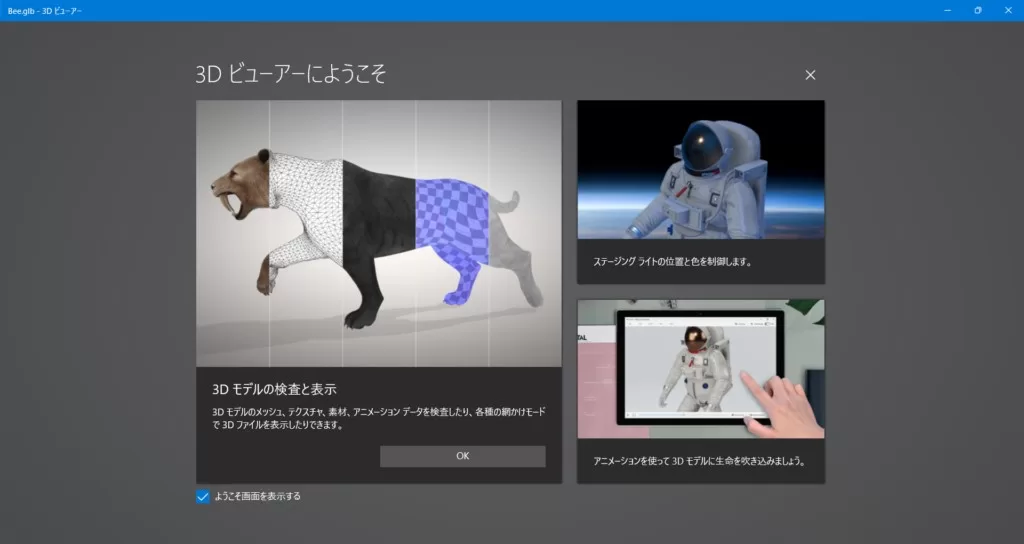
Next, select “File” in the upper left corner and then “Open” to open the file of the 3D model you wish to display.
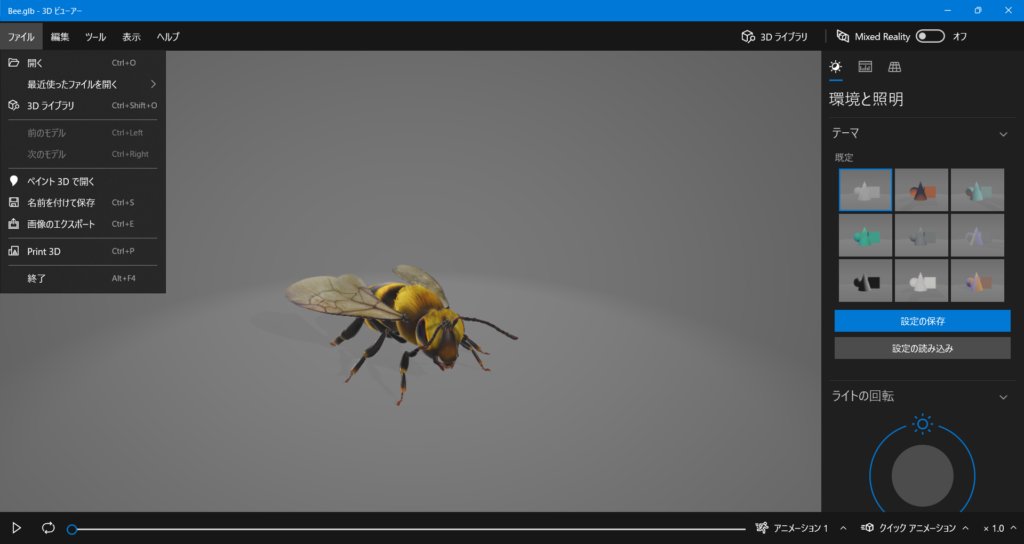
Operation Method 2: 3D Model Manipulation
The 3D model can be moved in the following ways
・Right click + mouse move
→ Move viewpoint
・Left click + mouse move
→Rotate
・Mouse wheel
→Zoom in/out
Method 3: Adding simple animations to the 3D model
To add a simple animation to the 3D model being displayed, click on “Quick Animation” in the lower right corner of the screen. You can choose from 4 types of pre-made animations.
If you wish to adjust the speed of the animation, you can do so by clicking on the “x1.0” link next to it.
Operation Method 4: Shooting a 3D model
The 3D Viewer has the ability to save the 3D model in image format with the angle of your choice.
Select “Export Image” from “File” in the upper left corner.
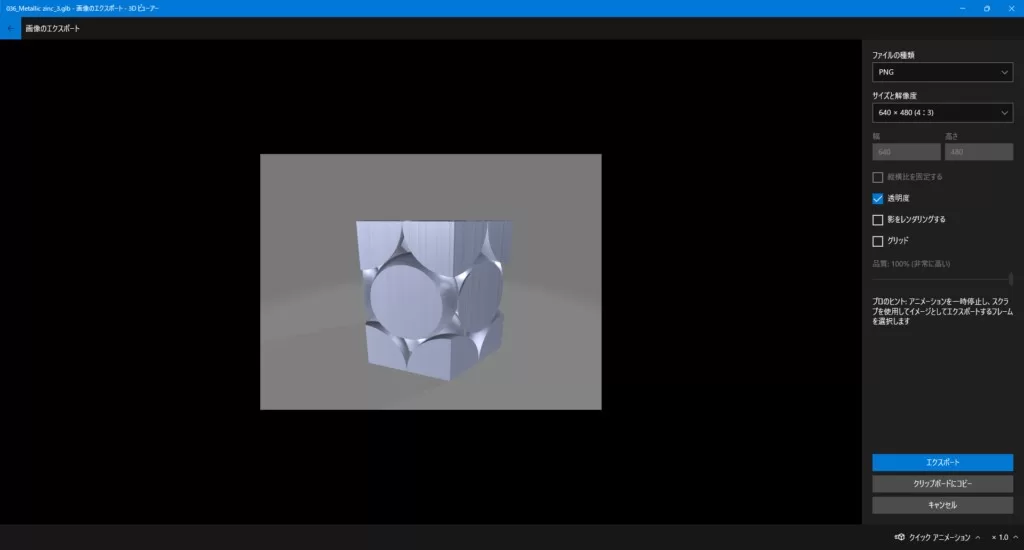
Select the desired save format, size and resolution shown on the right side of the screen.
Finally, click “Export” and specify a location to save the file.